
ROS2-026-ROS2 Tools: Coordinate Transforms (7) — The Coordinate Transform Tools
Introduction
In the TF framework, besides wrapping up coordinate broadcasting and listening, ROS2 also ships some tools that help us develop and debug more efficiently. This chapter is about using those tools.
They mainly involve two packages: tf2_ros and tf2_tools.
The packages
The common nodes provided by the tf2_ros package are:
static_transform_publisher: this node broadcasts static coordinate transforms. It was covered in detail in the ROS2-022-ROS2 Tools: Coordinate Transforms (3) — Coordinate Transform Broadcasting chapter, so I won't go over it again;tf2_monitor: this node prints the publishing rate and network delay of all frames, or of one particular frame;tf2_echo: this node prints the translation and rotation relationship of a particular frame.
The nodes provided by the tf2_tools package are:
view_frames: this node generates a pdf file showing the frame relationships, containing a tree-structured map of the frames.
Preparation
First, start several frame broadcasting nodes. Here we take the static and dynamic transforms from the Coordinate Transforms (3) — Coordinate Transform Broadcasting chapter as the example:
Static transform
In the workspace, open two terminals, A & B. In terminal A, enter:
. install/setup.bash
ros2 run tf2_ros static_transform_publisher --frame-id base_link --child-frame-id laser --x 1.0 --y 0.0 --z 0.2
In terminal B, enter:
. install/setup.bash
ros2 run tf2_ros static_transform_publisher --frame-id base_link --child-frame-id camera --x -0.5 --y 0.0 --z 0.4
Dynamic transform
In the workspace, open two terminals, C & D. In terminal C, enter:
. install/setup.bash
ros2 run turtlesim turtlesim_node
In terminal D, enter:
. install/setup.bash
ros2 run cpp03_tf_broadcaster demo02_dynamic_tf_broadcaster
Open yet another new terminal, E, and enter:
. install/setup.bash
ros2 run turtlesim turtle_teleop_key
The whole thing looks something like:

Examples of the tools' common nodes
Open yet another new terminal, F, for the new commands.
I. tf2_monitor
This node prints the publishing rate and network delay of frames within a set time (ten seconds by default).
In terminal F, enter:
ros2 run tf2_ros tf2_monitorand you'll see output like this:
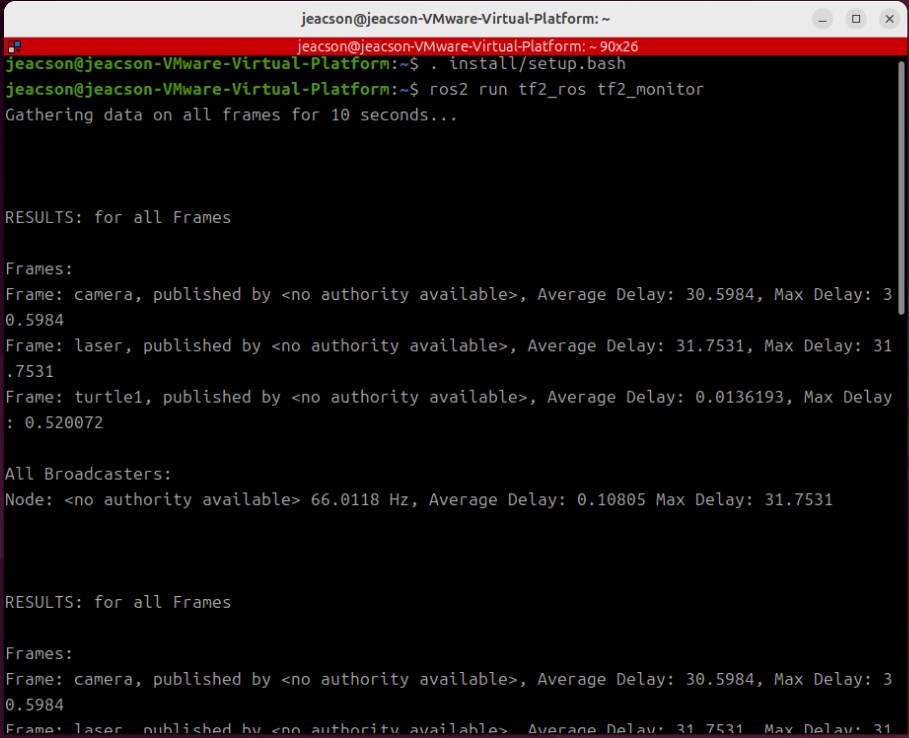
It prints the publishing rate and network delay of all frames within the set time.
You can also enter this in terminal F:
ros2 run tf2_ros tf2_monitor camera base_linkto see the publishing rate and network delay of the camera frame relative to the base_link frame.

The first few exceptions are just because the given frame hasn't been found in the buffer yet — that's normal
II. tf2_echo
This node prints the relative pose between two particular frames.
In terminal F, enter:
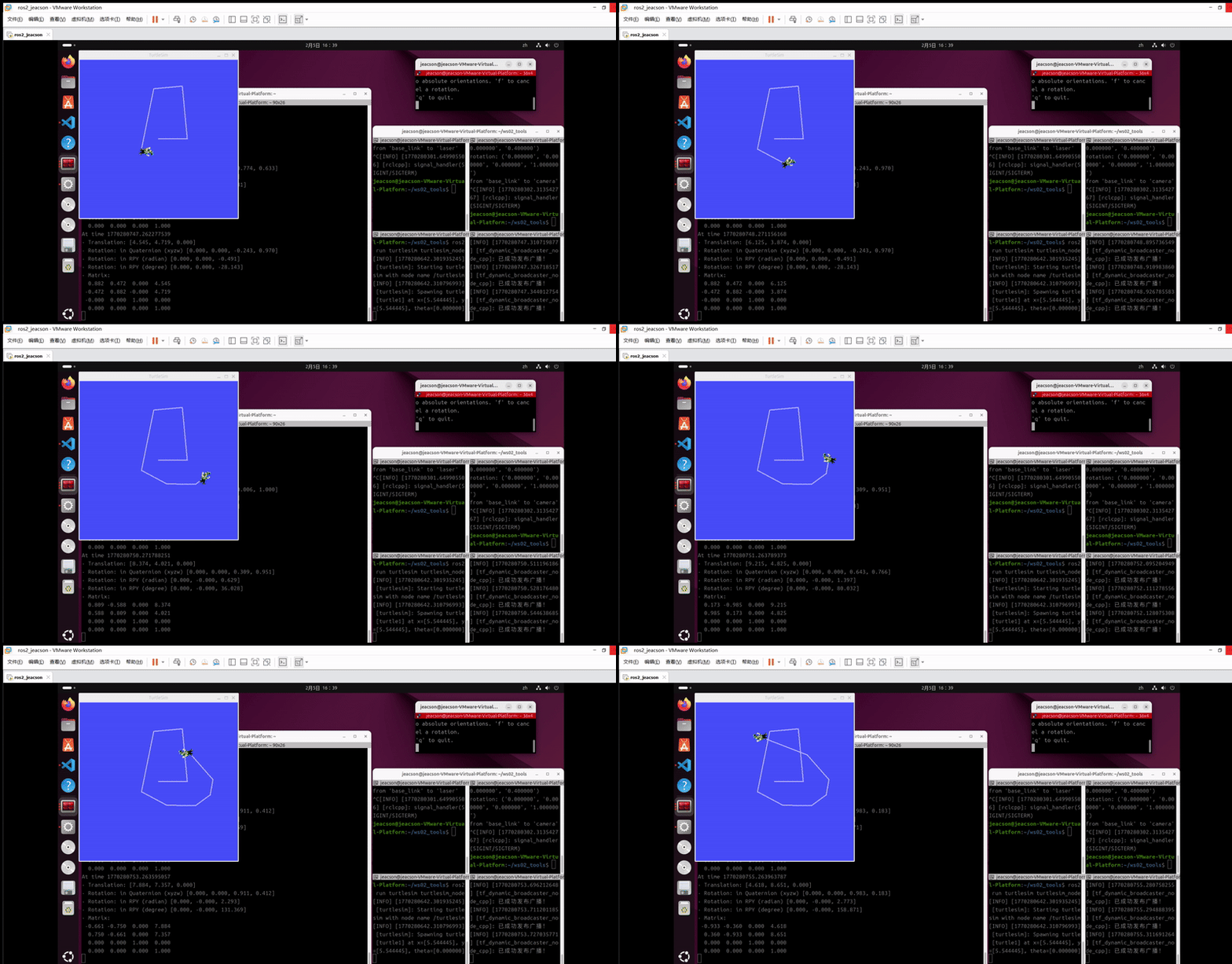
ros2 run tf2_ros tf2_echo world turtle1and it prints the relative pose between the two particular frames world and turtle1.

Its default output interval is around 1 s:
III. view_frames
This node displays frame relationships graphically.
In terminal F, enter:
ros2 run tf2_tools view_framesAfter starting up, the node subscribes to the /tf and /tf_static topics for 5 seconds, listening to and recording all the coordinate transform data published during that window, plus the parent-child relationship between every pair of frames.
It then generates several files in the current directory of that terminal:
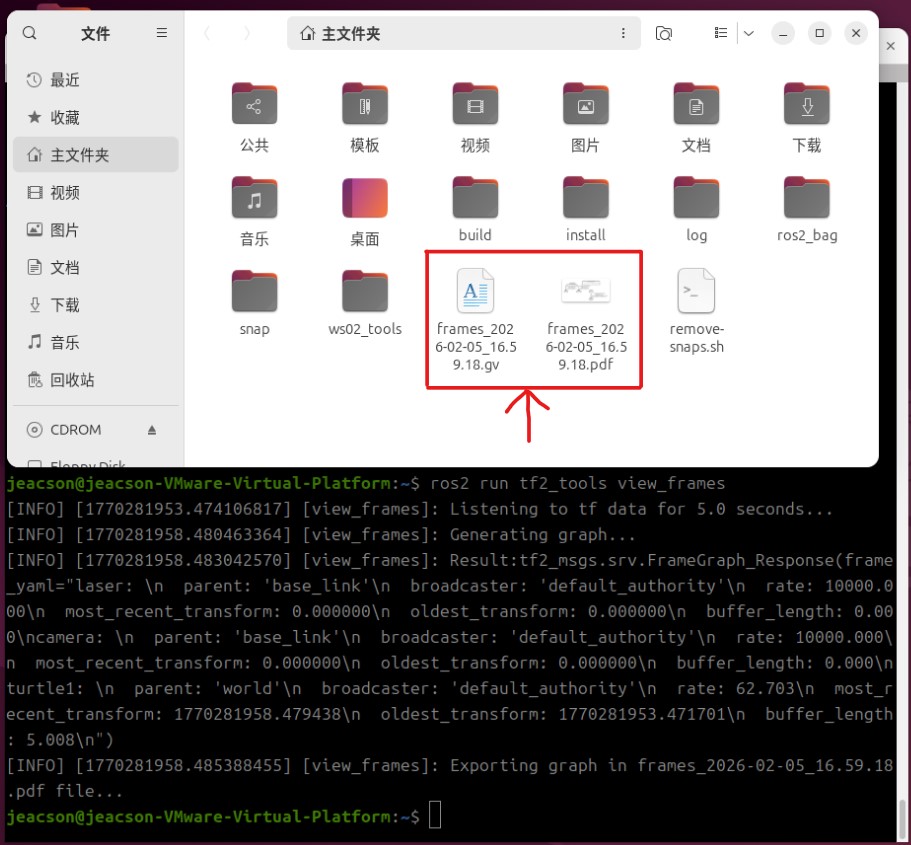
The two files are described as follows:
| File extension | Description |
|---|---|
.gv | A text file in Graphviz DOT format describing the graph structure; you can think of it as a description file for the .pdf below |
.pdf | The rendered PDF diagram showing the hierarchy of the TF tree; this is the file you look at |
That .pdf shows the following once opened:
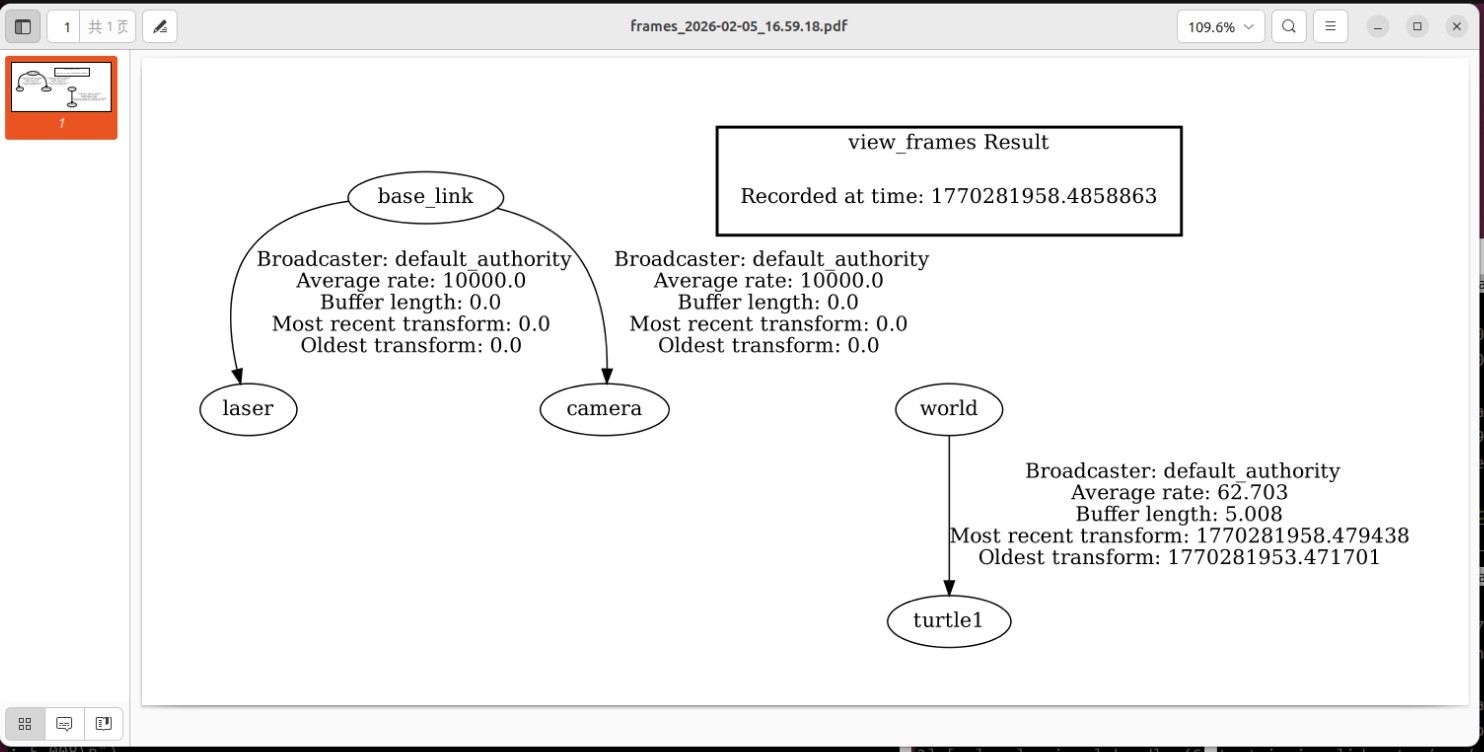
This method gets used a lot, because it displays the relative state of every node in a robot system much more intuitively afterwards.
Important
This article was translated by Hermes Agent; the original text can be found at here. The translation is for reference only. Translation time: 2026-11-05