
005_ Moving the blog's comment database from LeanCloud to Neon PostgreSQL
LeanCloud announced on 12 January 2026 that it will shut down its public service for good on 12 January 2027. So on 29 June 2026 I exported the comment data from LeanCloud and switched this blog over to Neon PostgreSQL. After reading the updated official documentation, here is the full migration procedure — and it has to be done in this order:
1. Export the Waline data from LeanCloud
Sign in to the LeanCloud console, open the application you set up earlier to store comments, click Data storage → Import/Export in the left sidebar, switch to the Export tab and hit Export:
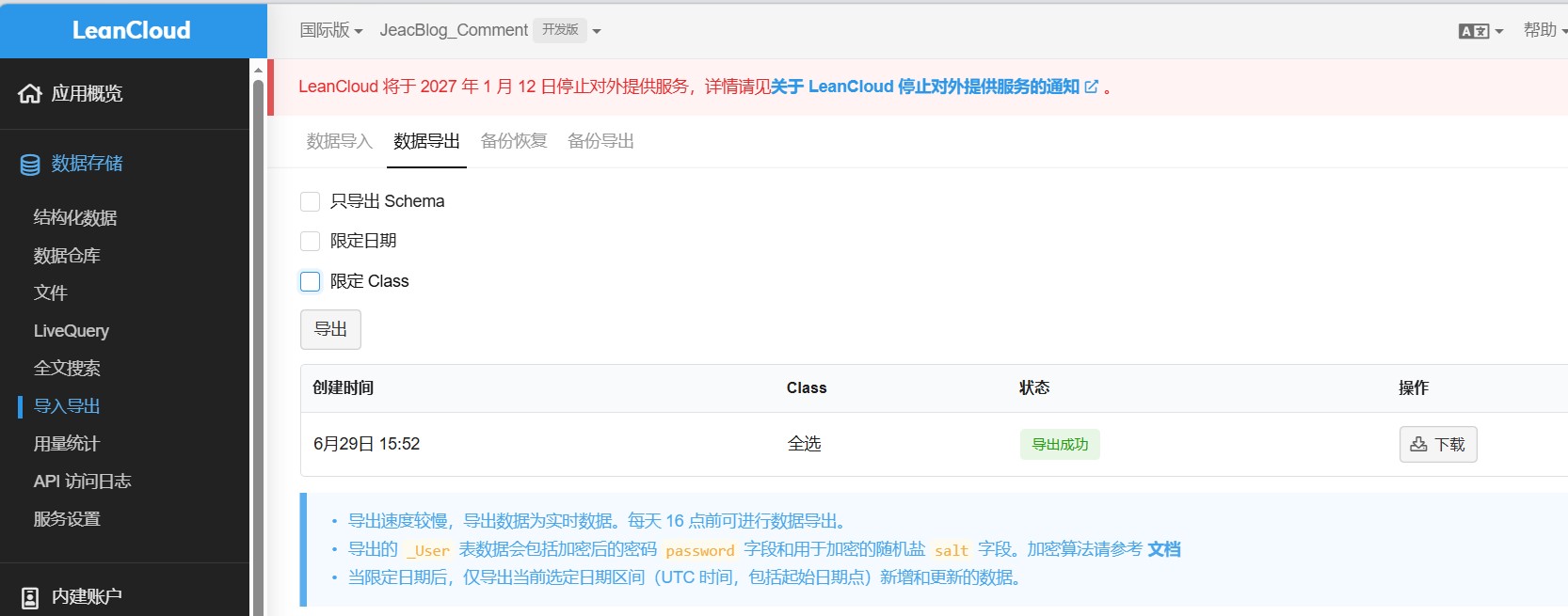
Comment volume here is tiny, so the export did not take long. What you get back is a .tar.gz file that still needs a format conversion later.
Note
If the dataset is large, you can limit the export to just these three:
- 'Comment'
- 'Counter'
- 'Users'
2. Create a Neon database in vercel and link it
In vercel, open the application you configured earlier, click Storage on the left and then Create Database on the right. Pick Neon from the provider list below:
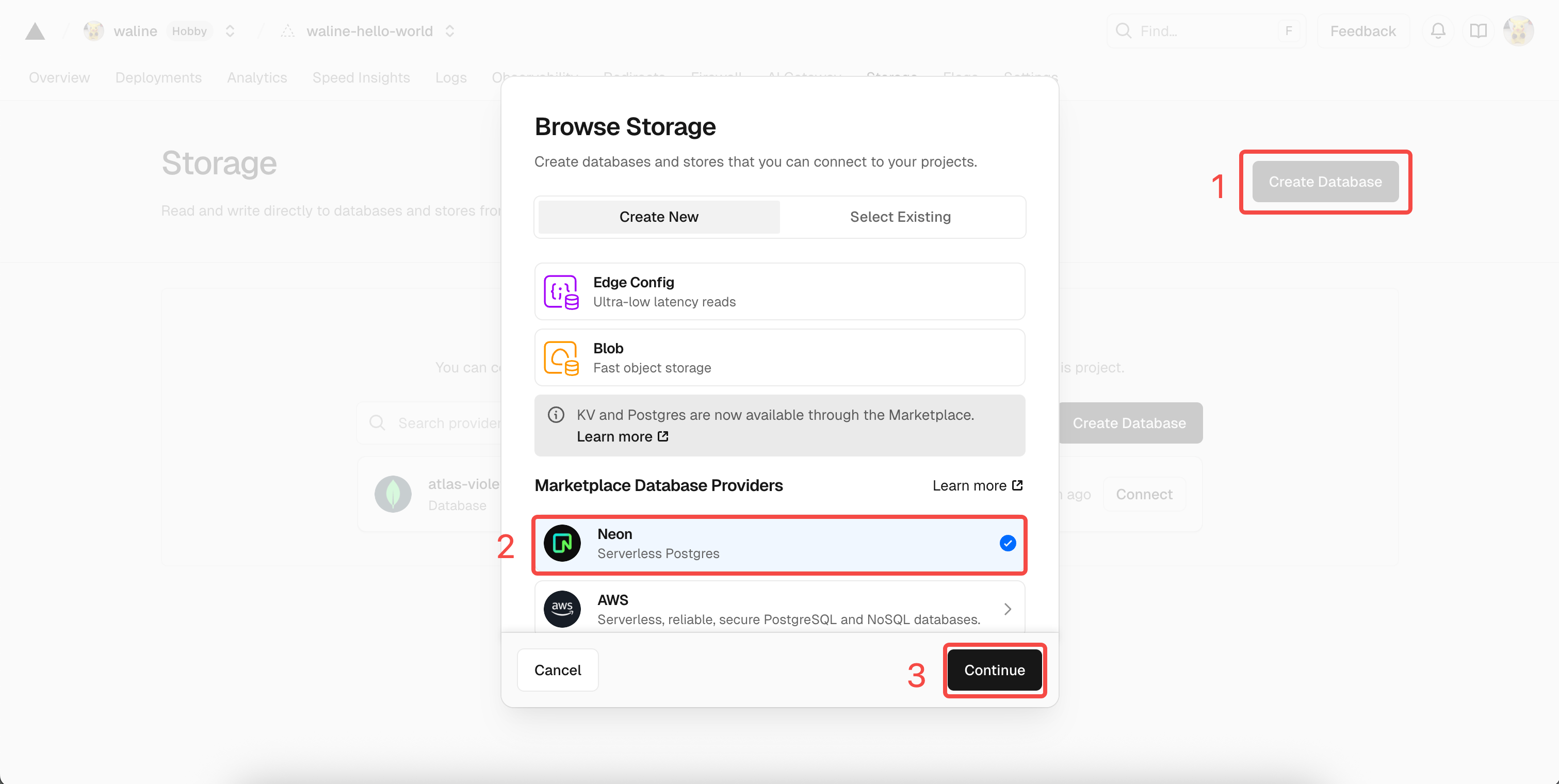
Link your Github account to create the Neon account, then create the database with the defaults (I did rename mine and picked the Singapore region, figuring a physically closer server could not hurt — leaving it alone works just as well).
Once it is created, click Open in Neon to jump over there. In Neon, choose SQL Editor on the left, paste the SQL statements from waline.pgsql into the editor and click Run to create the tables.
3. Convert the exported data and upload it
Use waline-data-import-tool to convert the data (I picked the waline-data-import-tool.exe release asset, matching my platform). After downloading that .exe, you need to create two files for the conversion:
1. The waline-neon.ini file
Importing into Neon means replacing the Keys that pointed at LeanCloud in the old configuration with the ones pointing at Vercel, so create a file like this:
[neon]
host=ep-xxxx-dew-xxxx-pooler.c-4.us-east-1.aws.neon.tech
port=5432
user=neondb_owner
password=<PASSWORD>
database=neondb
sslmode=require
For host and password: go back to vercel, open the application, click Storage, select the Neon database you just created, and look them up in the .env.local block under Quickstart — the corresponding key/value pairs are:
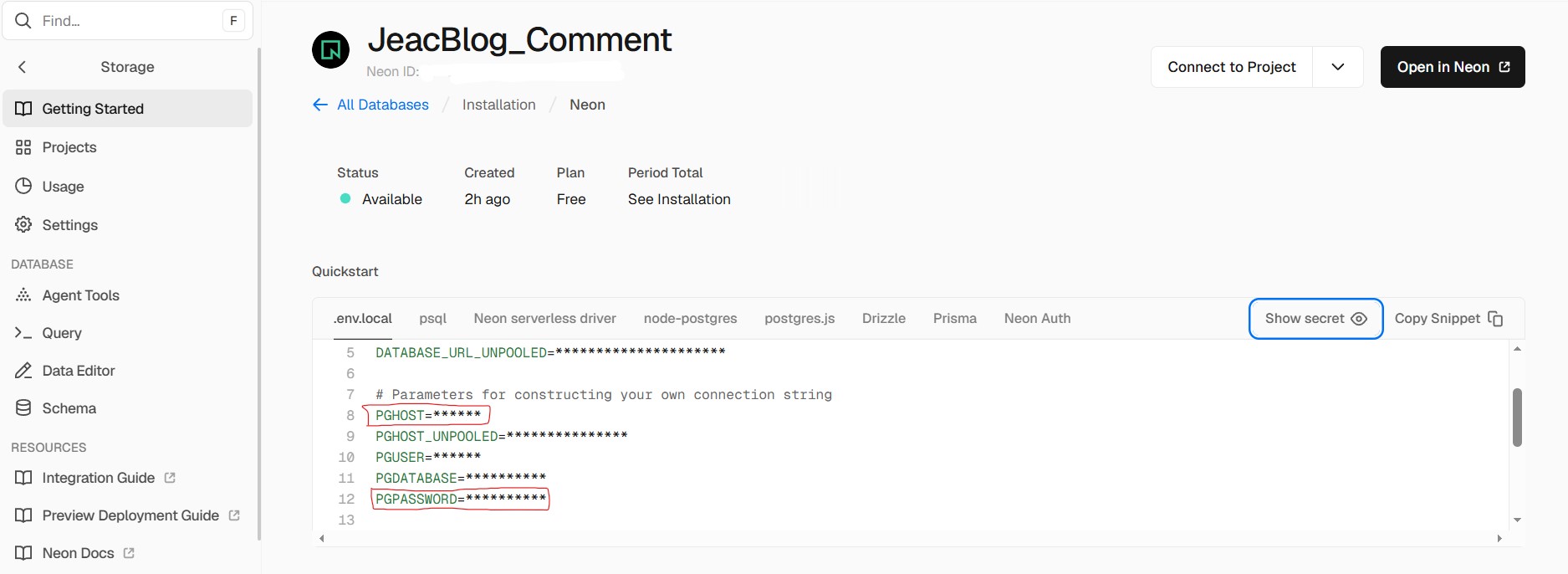
Save the file when you are done.
2. The waline.json file
Convert the LeanCloud export described above with the following python code:
import json
import os
import re

def parse_leancloud_jsonl(filepath):
    """Read the JSONL exported by LeanCloud and return a list of objects"""
    items = []
    with open(filepath, 'r', encoding='utf-8') as f:
        for line in f:
            line = line.strip()
            if not line:
                continue
            # Skip LeanCloud's comment header, e.g. #filetype:JSON-streaming ...
            if line.startswith('#'):
                continue
            obj = json.loads(line)

            # Handle LeanCloud's Date object format {"__type":"Date","iso":"..."}
            for key in ['insertedAt', 'createdAt', 'updatedAt']:
                if key in obj and isinstance(obj[key], dict) and obj[key].get('__type') == 'Date':
                    obj[key] = obj[key]['iso']

            # Drop fields we do not need (optional, keeps the payload smaller)
            for key in ['ACL', '__type']:
                obj.pop(key, None)

            items.append(obj)
    return items

def main():
    # Configuration: adjust to the actual filenames after unpacking
    files = {
        'Comment': 'Comment.0.jsonl',
        'Counter': 'Counter.0.jsonl',
        'Users': 'Users.0.jsonl',
    }

    data = {}
    for table, filename in files.items():
        if os.path.exists(filename):
            print(f"Processing {filename} ...")
            data[table] = parse_leancloud_jsonl(filename)
        else:
            print(f"Warning: {filename} not found, using an empty array")
            data[table] = []

    output = {
        "__version": "1.0.0",
        "type": "waline",
        "version": 1,
        "time": 0,
        "tables": ["Comment", "Counter", "Users"],
        "data": data
    }

    with open('waline.json', 'w', encoding='utf-8') as f:
        json.dump(output, f, ensure_ascii=False, indent=2)

    print("Done — waline.json generated")

if __name__ == '__main__':
    main()
It writes waline.json into the same directory.
3. Putting it together
Put waline-data-import-tool.exe, waline-neon.ini and waline.json in one folder, open Powershell as administrator in that folder and run:
.\waline-data-import-tool.exe -f .\waline.json -c .\waline-neon.iniThe records are then uploaded to Neon incrementally.
4. Redeploy
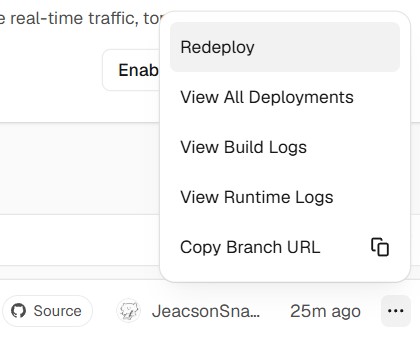
When that finishes, click Redeploy in vercel so the settings are picked up on a fresh boot.
Important
This article was translated by Hermes Agent; the original text can be found at here. The translation is for reference only. Translation time: 2026-11-05