
Setting up custom code snippets in VSCode
Overview
When you write code day to day, creating a bunch of files side by side means the same code gets written over and over. When you create a .vue file, for instance, you have to create the script tag and the template tag separately; or when you create node files in ROS2, the code structure comes out basically the same whether they are C++ files or Python files, and so on.
To cut down on all that repeated typing and write code more efficiently, we can set up custom snippets in VSCode and let it generate the snippet for us.
Steps
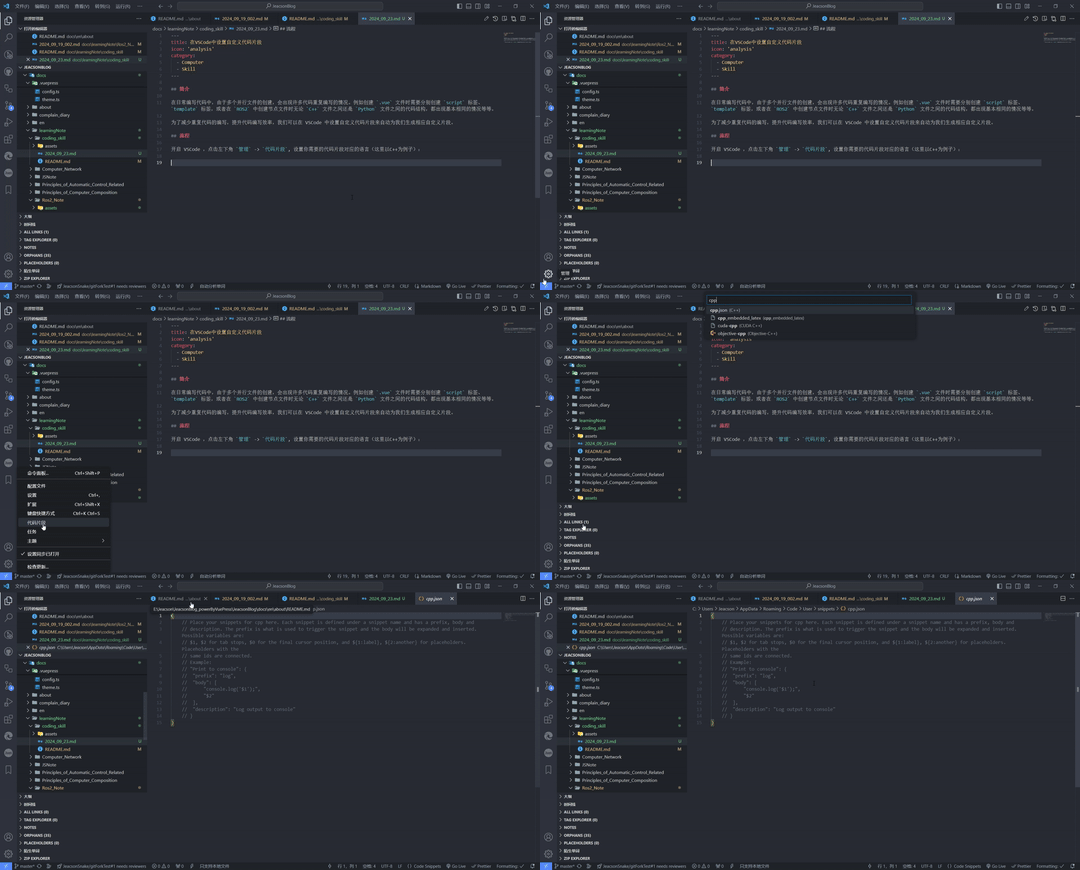
Open VSCode, click Manage in the bottom-left corner -> User Snippets, and pick the language your snippet is for (C++ in this example):
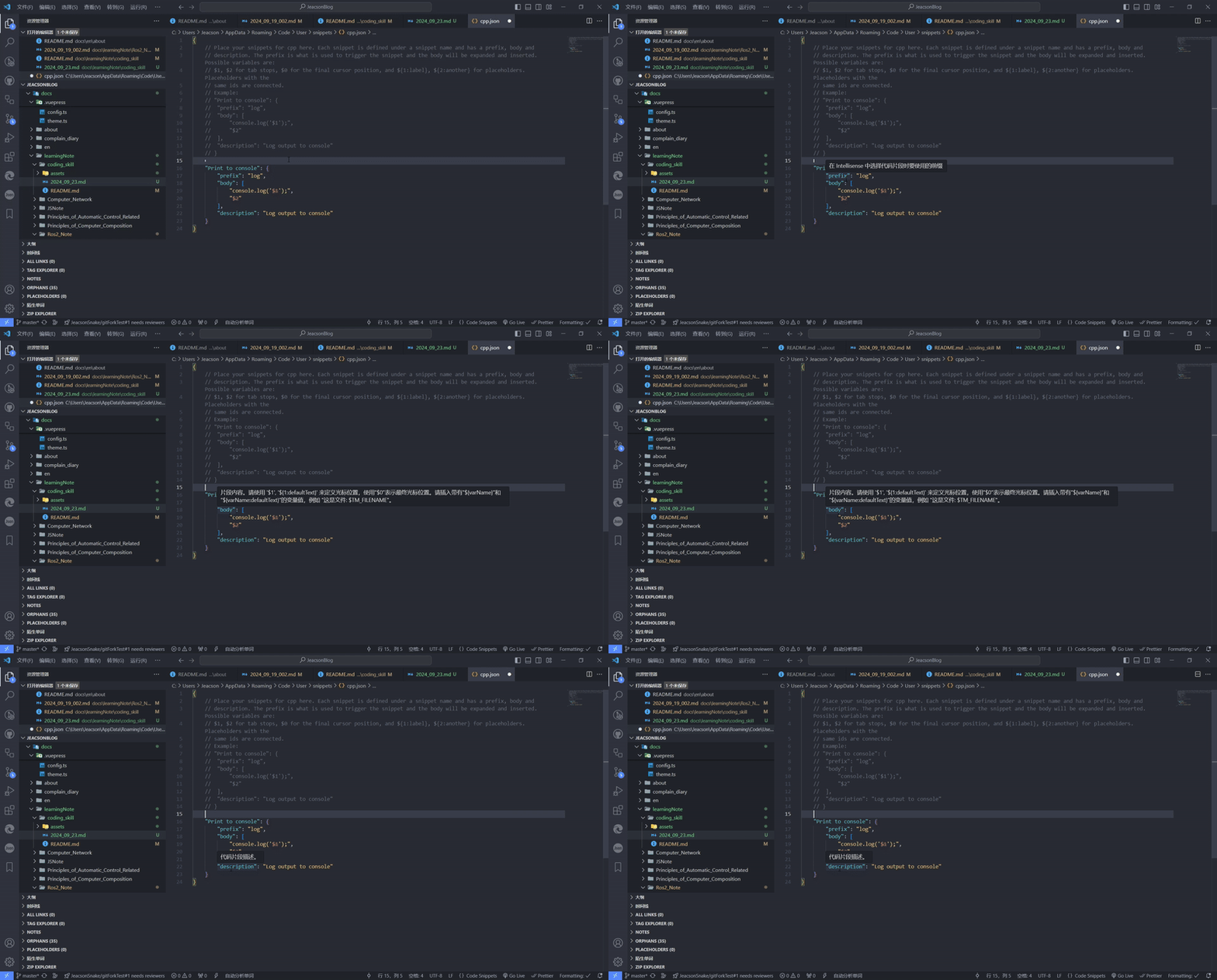
Copy the commented-out example in the file, paste it between the braces in the file, and uncomment it:
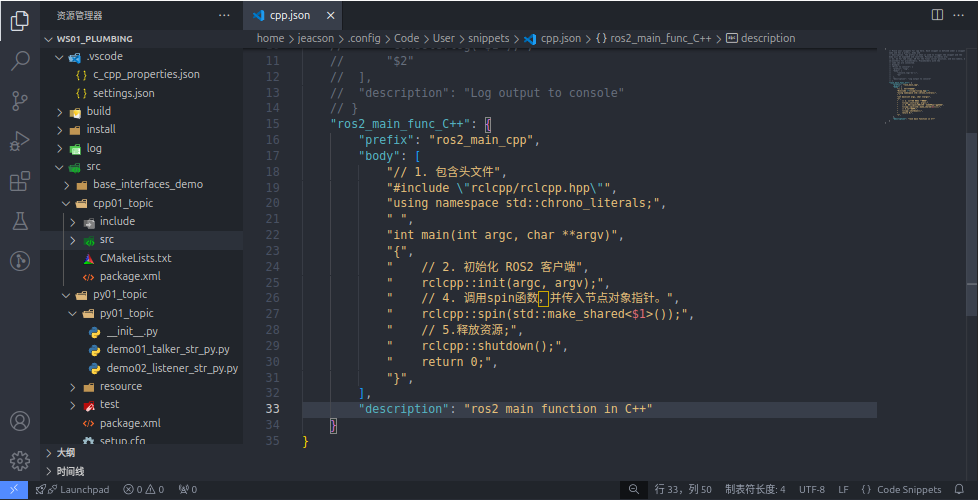
Then just edit the relevant bits following its format.
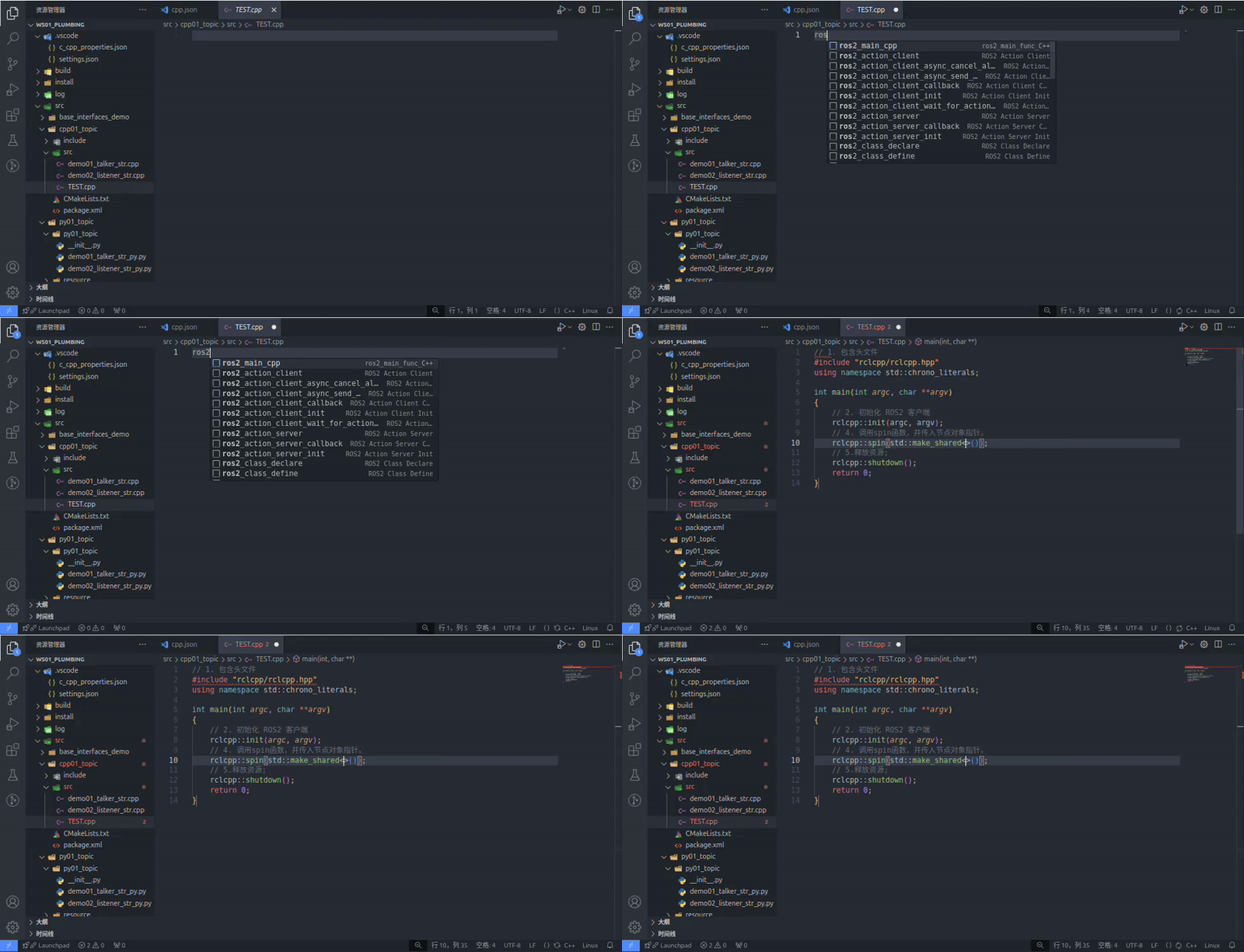
When you want to use it, just type the shortcut you set up:
Important
This article was translated by Hermes Agent; the original text can be found at here. The translation is for reference only. Translation time: 2026-11-05